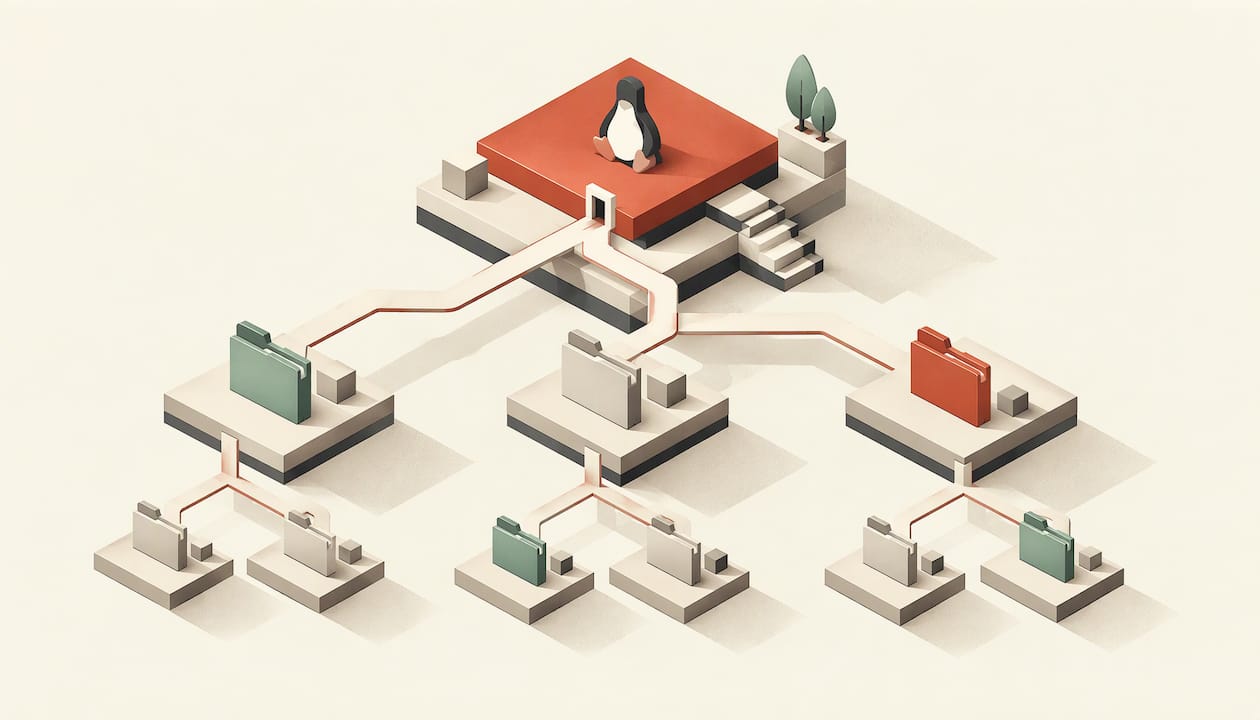
A Linux filesystem is two things at once. It is the on-disk format that lets the kernel find a file by name, and it is the single directory tree, starting at /, that every program sees. Once you separate those two ideas, the rest falls into place: partitions hold formats, formats get mounted into the tree, and the tree follows a standard layout. We build an operating system from scratch at Tech Haven Studios, so this is the layer we spend our days in. Below is the explanation we would give a friend starting out.
TL;DR
- Linux has one directory tree rooted at
/. Disks and partitions are attached to it by mounting, not given drive letters. - A filesystem is the on-disk structure (superblock, inodes, data blocks) that turns a name into data. Directories are just files that map names to inode numbers.
- The Filesystem Hierarchy Standard defines what lives in
/etc,/var,/usr,/homeand the other top-level directories. - ext4 is the general-purpose choice, XFS suits very large files and volumes, Btrfs and ZFS add copy-on-write and snapshots, and exFAT is the format for drives moved between operating systems.
Table of Contents
- What a filesystem actually is
- One tree, many disks
- The Linux filesystem structure: what lives where
- Common Linux filesystem types
- Building a filesystem versus using one
- A short practice routine
- FAQ
- Sources
What a filesystem actually is
A disk is just a long run of numbered blocks. It has no idea what a file, a name or a folder is. A filesystem is the set of structures written onto those blocks that answers name-based questions: where does notes.txt start, how big is it, who owns it, which blocks are free. GoLinuxCloud's walkthrough lists the usual pieces: a superblock, inode or FAT tables, free-space maps, and a journal on ext4 and XFS. It also points out that creating a new filesystem destroys the metadata of the old one, which is why formatting makes data effectively unreachable.
The Linux Documentation Project names the central concepts shared by most UNIX-style filesystems:
- Superblock: filesystem-wide information, such as its size.
- Inode: everything the system knows about a file except its name.
- Data block: the actual contents.
- Directory block: a list pairing filenames with inode numbers.
- Indirection block: extra pointers for files too large to be described by the inode alone.
Inodes and directories
The inode idea surprises many newcomers. According to OpenStax's computer science text, an inode holds metadata about a file or directory but not its name. A directory is a special file storing pairs of a name and an inode number. To open /home/ana/notes.txt, the system starts at the root directory, looks up home to get an inode, reads that directory to find ana, and repeats until it reaches the inode for notes.txt. That inode then points to the data blocks.

This design explains several behaviors that otherwise look like magic. Renaming a file only edits a directory entry. Two names (hard links) can point to the same inode. A file can be deleted while a program still has it open, because the data lives until the last reference goes away.
So what is a file in Linux?
In the everyday sense, a file is a named sequence of bytes. In the Unix tradition the idea stretches further: directories are files, and devices appear as files under /dev, which is why the FHS lists device files as a standard part of the root. A program can read a disk, a terminal or a document through the same open, read and write calls. That uniformity is a big reason the system is easy to explore and to build on.
One tree, many disks
If you come from Windows, the biggest shift is that Linux has no C: and D:. O'Reilly's Debian guide contrasts this with MS-DOS, which kept a separate hierarchy per partition: Linux provides a single hierarchy that includes every partition, with the root written as a forward slash. A path that begins at / is absolute. A path that begins from where you are standing is relative, and . and .. mean the current and parent directories.
Disks, partitions, filesystems, mount points
The LPI's LPIC-1 learning material gives a clean four-layer model:
- A disk is the physical container, for example
/dev/sda. - A partition is a logical region of the disk, recorded in a partition table, for example
/dev/sda1. - A filesystem inside the partition describes how data is stored.
- A mount point is an existing directory where that filesystem is attached to the tree.
The mount manual page describes the effect: while a filesystem is mounted, the mount directory's pathname refers to the root of the filesystem on the device, and whatever the directory held before becomes invisible until you unmount. That is why you mount onto an empty directory.
Not every partition holds an ordinary filesystem. Geek University notes that swap partitions carry a swap signature and EFI System Partitions serve a specialized boot purpose.
Seeing it on your own machine
Run lsblk. Network World's explanation shows how its output maps partitions to mount points, such as one partition to /boot, another to /, and a second disk to /home. The file /etc/fstab makes those mounts permanent. Each line names the partition (often by UUID), the mount point, the filesystem type, mount options, a dump flag and an fsck order.
IBM's LPIC-1 study notes add a detail worth remembering: the kernel first mounts a hard-drive partition as /, and everything else is attached after that. If the root filesystem cannot be mounted, nothing else works, which is the heart of every "kernel panic: unable to mount root fs" message.
The Linux filesystem structure: what lives where
The layout you see after mounting is not arbitrary. The Filesystem Hierarchy Standard (FHS) requires 14 directories or symbolic links in /. Here they are with their jobs:
| Directory | Purpose |
|---|---|
/bin | Essential command binaries |
/boot | Static files for the boot loader |
/dev | Device files |
/etc | Host-specific configuration |
/lib | Essential shared libraries and kernel modules |
/media | Mount point for removable media |
/mnt | Temporary mount point |
/opt | Add-on software packages |
/run | Data relevant to running processes |
/sbin | Essential system binaries |
/srv | Data for services the system provides |
/tmp | Temporary files |
/usr | Secondary hierarchy |
/var | Variable data |
Your personal files usually sit in /home, which the table leaves out because it is optional in the standard. As Cornell's Virtual Workshop puts it, most user work happens in the home directory while programs live elsewhere.
Two directories worth knowing well
/usr holds the bulk of installed software. Per the Cornell reference, /usr/bin has program binaries, /usr/lib libraries, /usr/include header files, /usr/share shared data such as documentation, /usr/local data local to the host, and /usr/src kernel source.
/var is where a running system writes things that change. The FHS specifies /var/cache for application cache data, /var/lib for variable state information, /var/lock for lock files, /var/log for log files, /var/spool for spool data, and /var/tmp for temporary files preserved between reboots. When a disk fills up unexpectedly, /var/log is the first place to look.
This split also explains why people give /home or /var their own partition: a runaway log or a reinstall of the system does not touch the data on a separate mount.
Common Linux filesystem types
The directory tree looks the same whichever format sits underneath. The format decides speed, limits and features such as snapshots.
ext4: the general-purpose default
TechTarget describes ext4 as designed for general use and a natural fit for developer workstations, user computers and home systems. It journals changes, so a crash is less likely to leave the structures inconsistent. According to GoLinuxCloud's comparison, ext4 can also be shrunk offline with resize2fs, a flexibility worth having when you are unsure how a disk will be used.
XFS: very large files and volumes
The same TechTarget piece says XFS is optimized for the immense files and workloads that ordinary machines rarely generate. It grows online with xfs_growfs but never shrinks, so size it with some thought. The short version of ext4 versus XFS: ext4 for a laptop, desktop or small server, XFS when the volume is big and the workload is heavy.
Btrfs and ZFS: copy-on-write
These two use copy-on-write. Baeldung explains that changed data is written to a new area of disk and only then are references updated, so a file is never left half-written. Shallow copies duplicate data only when something changes, which makes snapshots and replication cheap. ZFS adds block-by-block checksums, so it can detect a corrupted block and heal it from a good mirrored copy. If you like experimenting with snapshots and rollbacks on a desktop, this family is where to look.
FAT32, exFAT and NTFS: sharing with other systems
A common question is whether Linux uses NTFS or ext4. The answer is that Linux uses ext4 (or a peer) for its own system and can also read and write the others. According to ConfigureHow, Linux gained an in-kernel read-write NTFS driver, NTFS3, in kernel 5.15, released on October 31, 2021, replacing the userspace ntfs-3g route. The same source says exFAT support arrived in kernel 5.4 in November 2019, with the Samsung-derived implementation in 5.7 being the one in use.
For removable drives the practical rules are:
- FAT32 caps single files at 4 GiB and has no Unix ownership or journaling, so it suits boot partitions and old devices.
- exFAT is the format that current Windows, macOS and Linux all mount read-write without extras, so it fits a drive that moves between machines.
- NTFS is best kept for drives that stay with Windows, though Linux now handles it.
A quick chooser
| Situation | Sensible pick |
|---|---|
| Desktop, laptop or developer machine | ext4 |
| Large volume, large files, heavy server load | XFS |
| Snapshots, rollback, checksummed data | Btrfs or ZFS |
| USB drive shared across Windows, macOS, Linux | exFAT |
| EFI boot partition | FAT32 |
As GoLinuxCloud's author notes, the choice is usually obvious once you know what the storage is for. Two facts drive most decisions: the 4 GiB file ceiling on FAT-family formats and XFS's inability to shrink.
Building a filesystem versus using one
Reading about superblocks is useful. Writing code that parses them is what makes the ideas stick. A filesystem driver has to read a partition table, locate a root directory, walk name-to-inode entries and manage free space, all without the conveniences of a finished operating system underneath.
That is the work behind HavenDOS, our from-scratch 32-bit x86 operating system. It has its own kernel, drivers, FAT storage, networking, shell and installer, so it handles the same layers described above in a much smaller codebase. If you want to see what a FAT storage layer looks like inside a complete, small system, the HavenDOS page has the project, and the development and release history records how it changed over time. The screenshot gallery shows it running.

On the other side of the stack, MorrowOS is our Kubuntu- and KDE Plasma-based Linux distribution. It is a practical place to run the commands in this article, from lsblk to editing /etc/fstab, on a desktop built on the standard hierarchy. Details are on the MorrowOS page.
Together, the two projects cover both ends: a mature Linux filesystem stack to explore, and a from-scratch system to study how one gets built. Our documentation and release notes are public, so you can read how decisions were made as well as the result.

A short practice routine
To make the concepts concrete on any Linux machine, try this in order:
- Run
lsblkto see disks, partitions and mount points. - Open
/etc/fstaband match each line to whatlsblkshowed. - Walk the tree: list
/, then/usr, then/var, and compare what you find with the FHS tables above. - Use
ls -ion a few files to see inode numbers, then create a hard link withlnand compare. - Read the mount manual page (
man 8 mount) to see how options change behavior.
Do the experiments on a spare drive or a virtual machine. Formatting a partition erases what was on it, so check the device name twice before running any command that creates a filesystem.
FAQ
Does Linux use NTFS or ext4?
Linux uses ext4 or a similar native format for its own system partitions. It can also read and write NTFS: the in-kernel NTFS3 driver has been available since kernel 5.15. NTFS is mainly useful on drives you share with Windows.
What is the difference between ext4 and XFS?
ext4 is the general-purpose format, well suited to desktops, laptops and developer machines, and it can be shrunk offline. XFS is tuned for very large files and heavy workloads and can grow online, but it cannot shrink.
Which is better for Linux, exFAT or FAT32?
For drives that move between operating systems, exFAT is the better pick because Windows, macOS and Linux all mount it read-write without extra software. FAT32 limits single files to 4 GiB, so it is mostly kept for boot partitions and older devices.
Why does Linux have no drive letters?
Linux builds one directory tree rooted at /. Each filesystem is attached to that tree at a mount point, so a second disk simply appears as a directory such as /home or /data.
What is a file in Linux?
A file is a named sequence of bytes described by an inode. Directories and device nodes are treated as files too, which lets programs use one set of calls for documents, terminals and disks.
Sources
- OpenStax: File Systems, Introduction to Computer Science
- O'Reilly: How Linux Organizes Data
- Linux Filesystem Hierarchy (Linux Documentation Project)
- Filesystem Hierarchy Standard: root requirements
- Filesystem Hierarchy Standard
- Cornell Virtual Workshop: Linux filesystem
- LPI LPIC-1: 102.1 Lesson 1
- mount(8) Linux manual page
- Network World: File systems and UUIDs on Linux
- IBM: LPIC-1 topic 102.1, hard disk layout
- GoLinuxCloud: Create Linux filesystems
- Geek University: What is disk partitioning in Linux
- Baeldung: Guide to Linux filesystems
- TechTarget: XFS vs. ext4
- ConfigureHow: file systems explained